One case, eight tabs,
three lenses, one schema.
Most case-management tools bury what matters under a folder tree. Dossier doesn't. Every tab on the case is a focused surface — substantive data on Petition, court chrome on Court, ops on Manager, ground truth on Forms — and they all read from one canonical schema. This walkthrough opens a real case and walks every stop on the chrome so you know where you are when you land somewhere cold.
The case header
Every case opens on a fixed header: court caption with party names and references, status pill (clickable to change), key dates, and the tab row. The Ask palette and the assistant drawer live in the chrome too — available from any tab without losing context.
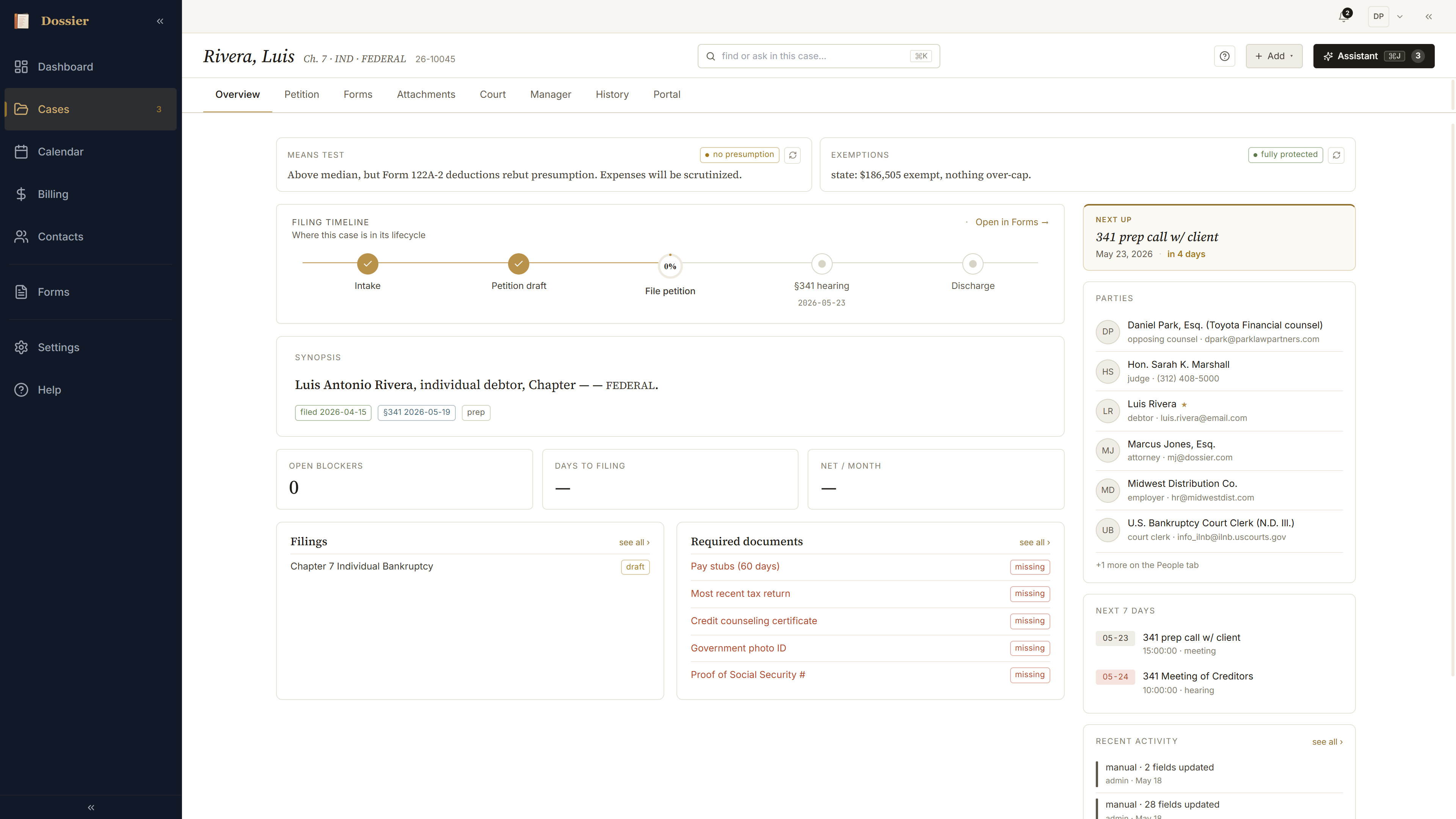
Overview — what the case is right now
Overview is the at-a-glance dashboard. The verdict strip across the top runs three calculators live — means test, exemptions, plan feasibility — one pill each, click-through to the calculator with its explained worksheet expanded. Below it: synopsis, KPIs, chapter spotlight, blockers, filings, parties rail.

Petition — the substantive case data
Petition is where the case lives. Subtabs along the top: Parties, Income & Expenses, Property, Creditors, plus chapter-specific Intent / SOFA / Sched G/H / Operating / Plan. Each card edits in place; edits collect in one draft and commit together on the Changes tab.
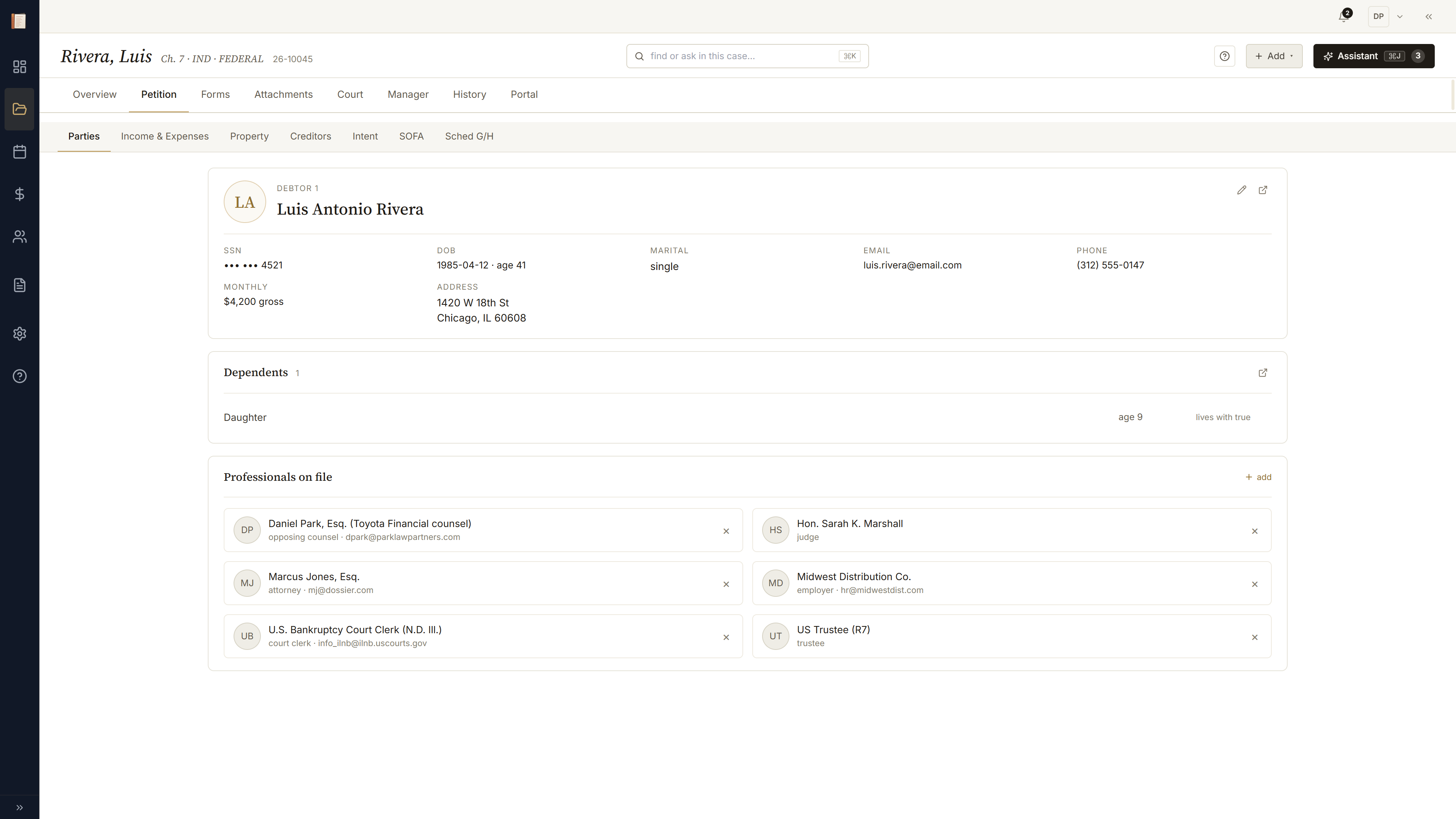
Petition — Income & Expenses + means test
The means-test calculator lives inline at the bottom of the Income & Expenses subtab. It reads the same income / household keys the schedules read, runs live against the schema, and renders an explained worksheet you can expand line by line.
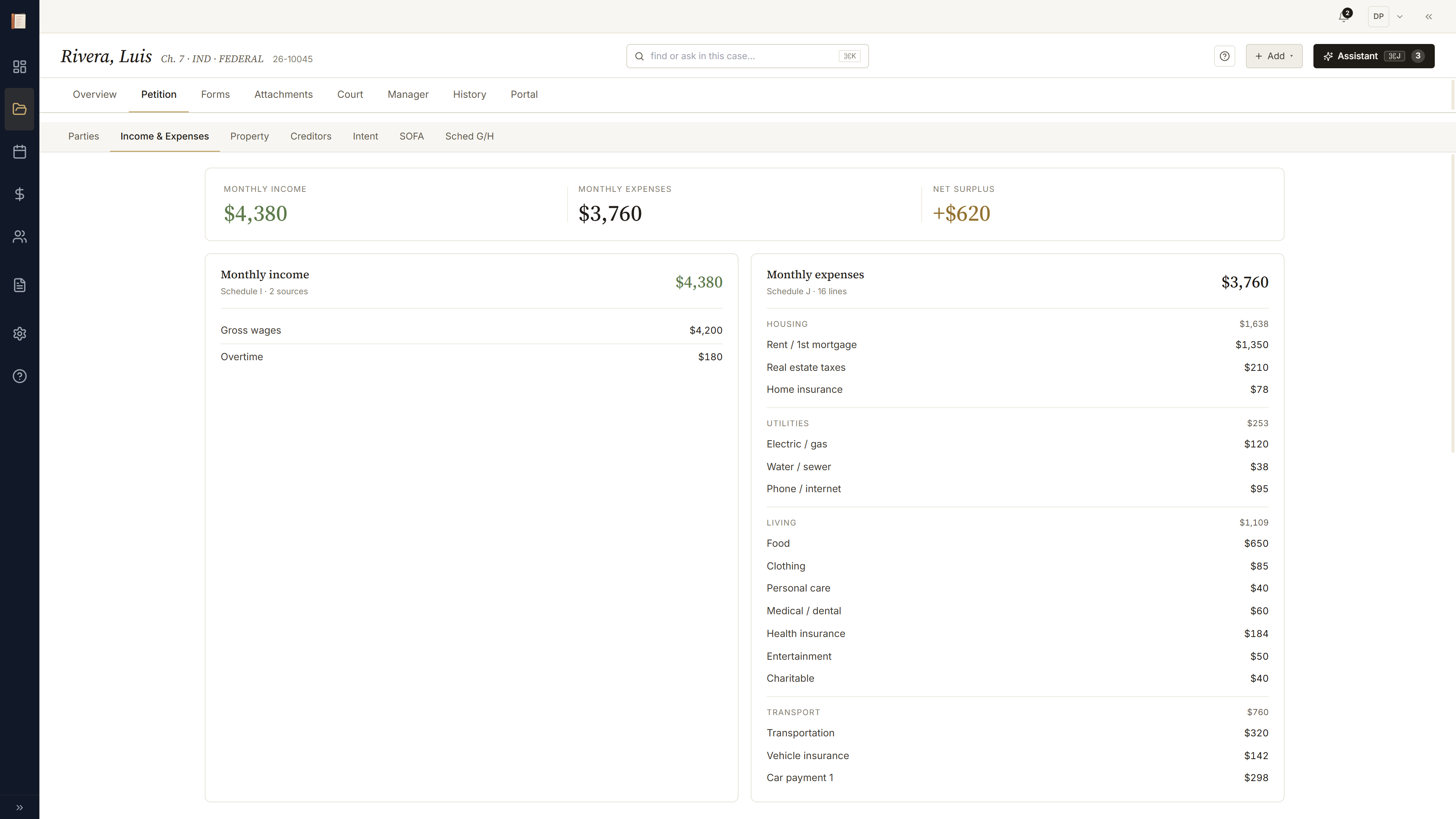
Petition — Property + exemption resolver
Property carries assets and the exemption resolver right alongside. Each asset row shows available vs claimed; the resolver picks the right statute per asset and exposes the same explained-worksheet trace as the means test.
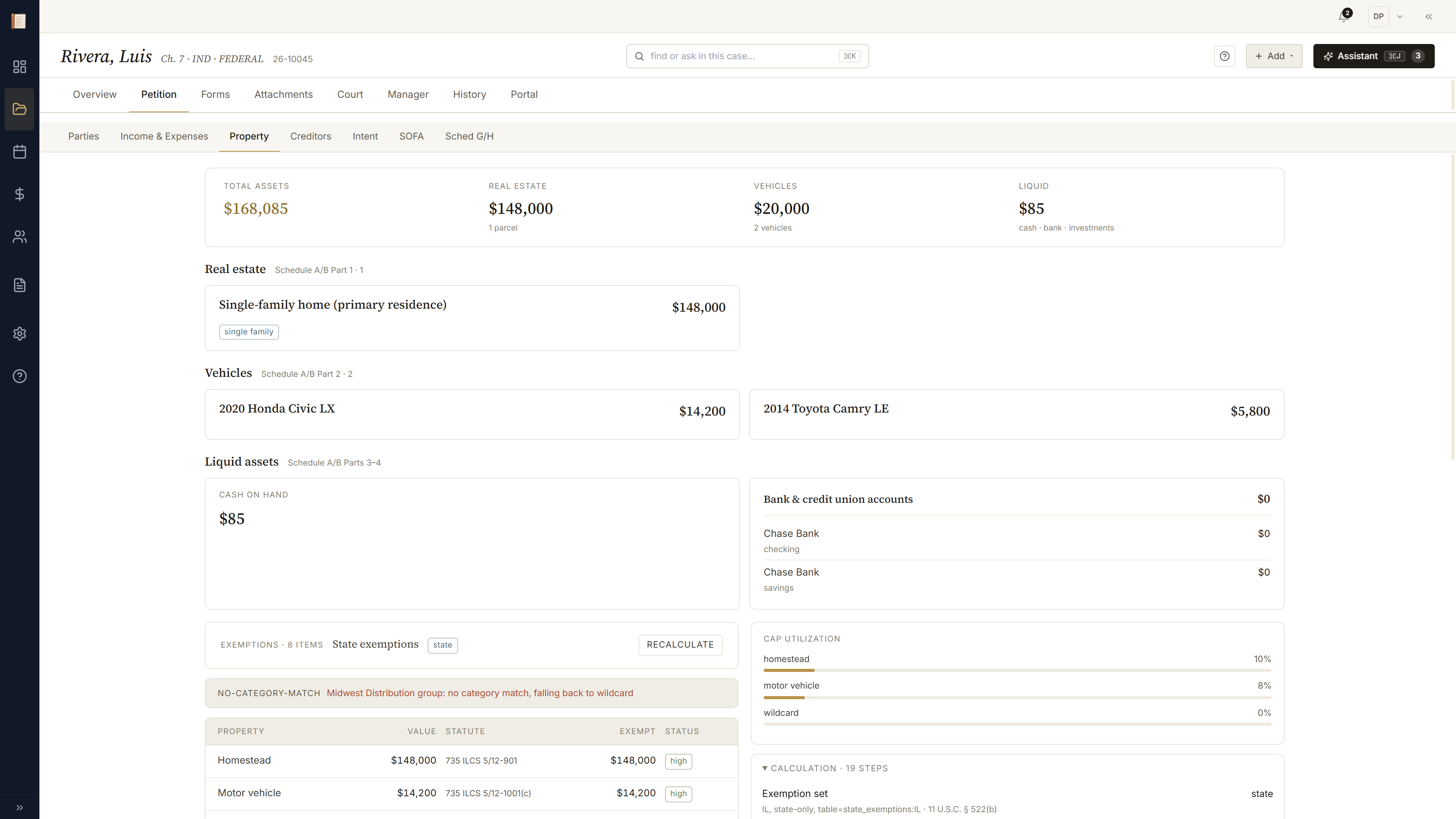
Forms — the Data lens
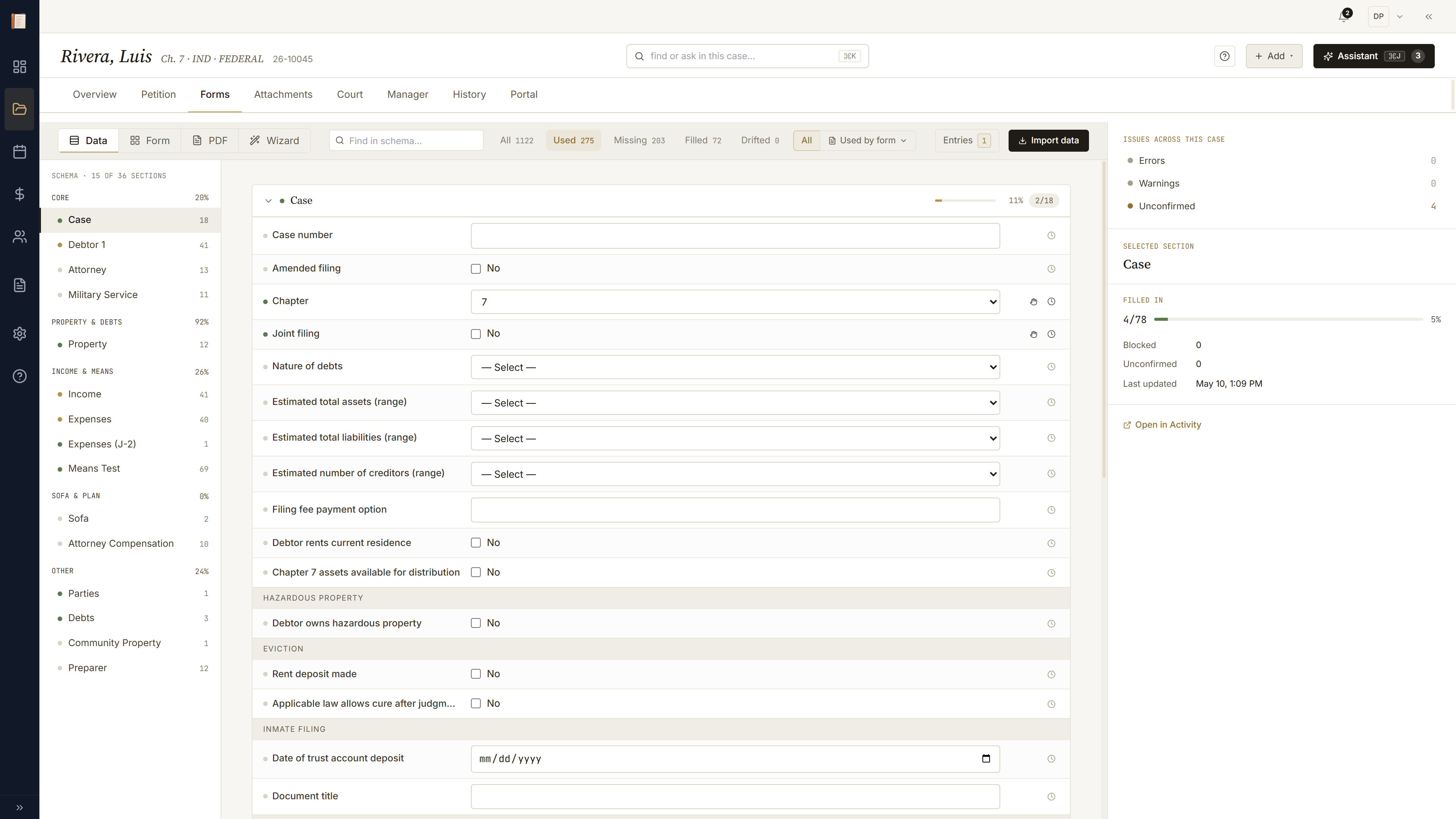
Forms is where data meets paper. Four lenses on the same canonical schema: Data, Form, PDF, Wizard. Switch with S / F / P / W. The Data lens is the default — schema fields organized by topic with inline inputs for fast entry across the whole case.
Forms — the Form lens
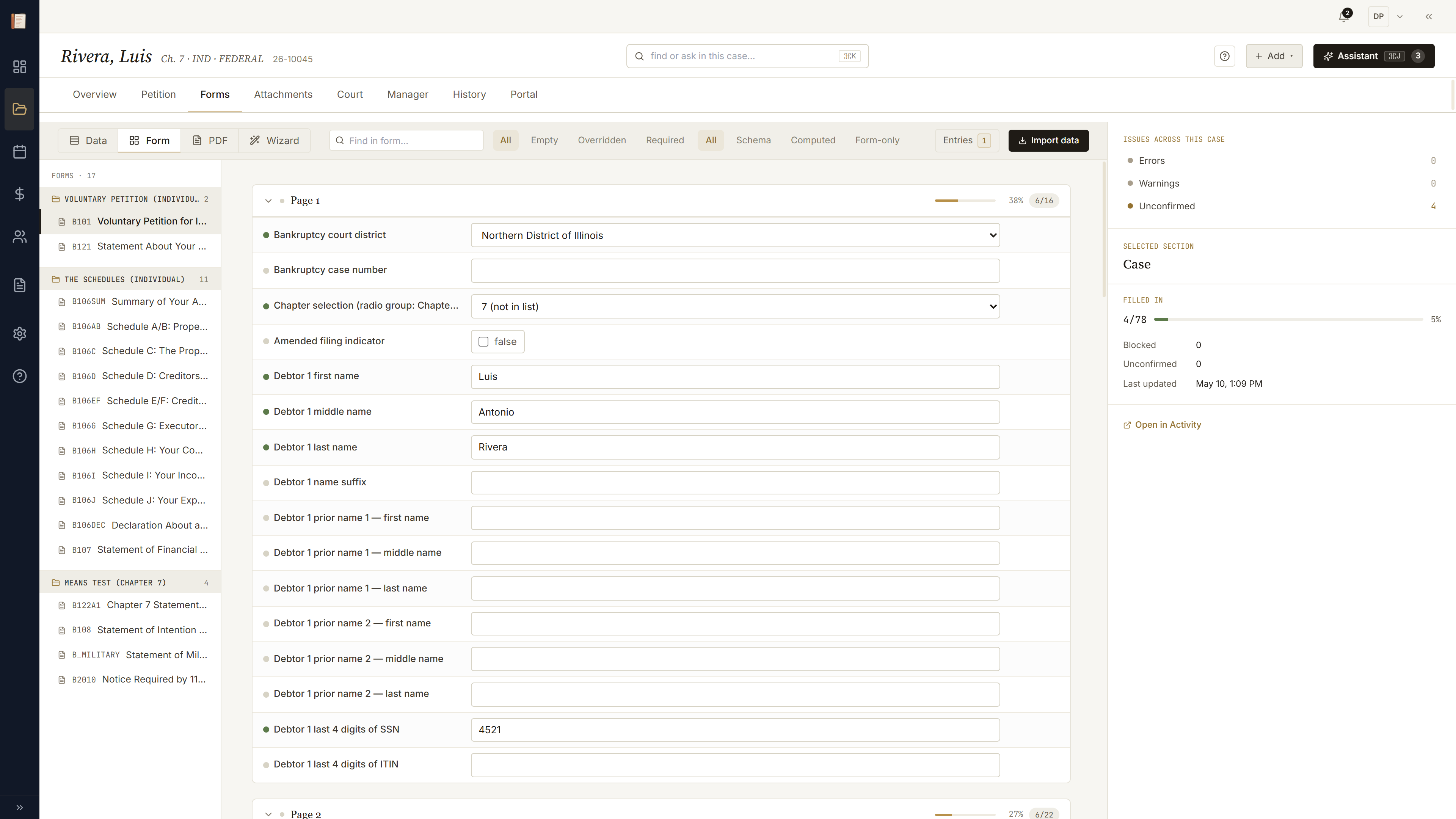
The Form lens picks one PDF form and shows it line by line with its bindings, computed indicators, and a per-row override dropdown. Flip a conditional gate and the dependent rows light up gold and slide in — the reveal animation is the dependency made visible.
Forms — the PDF lens
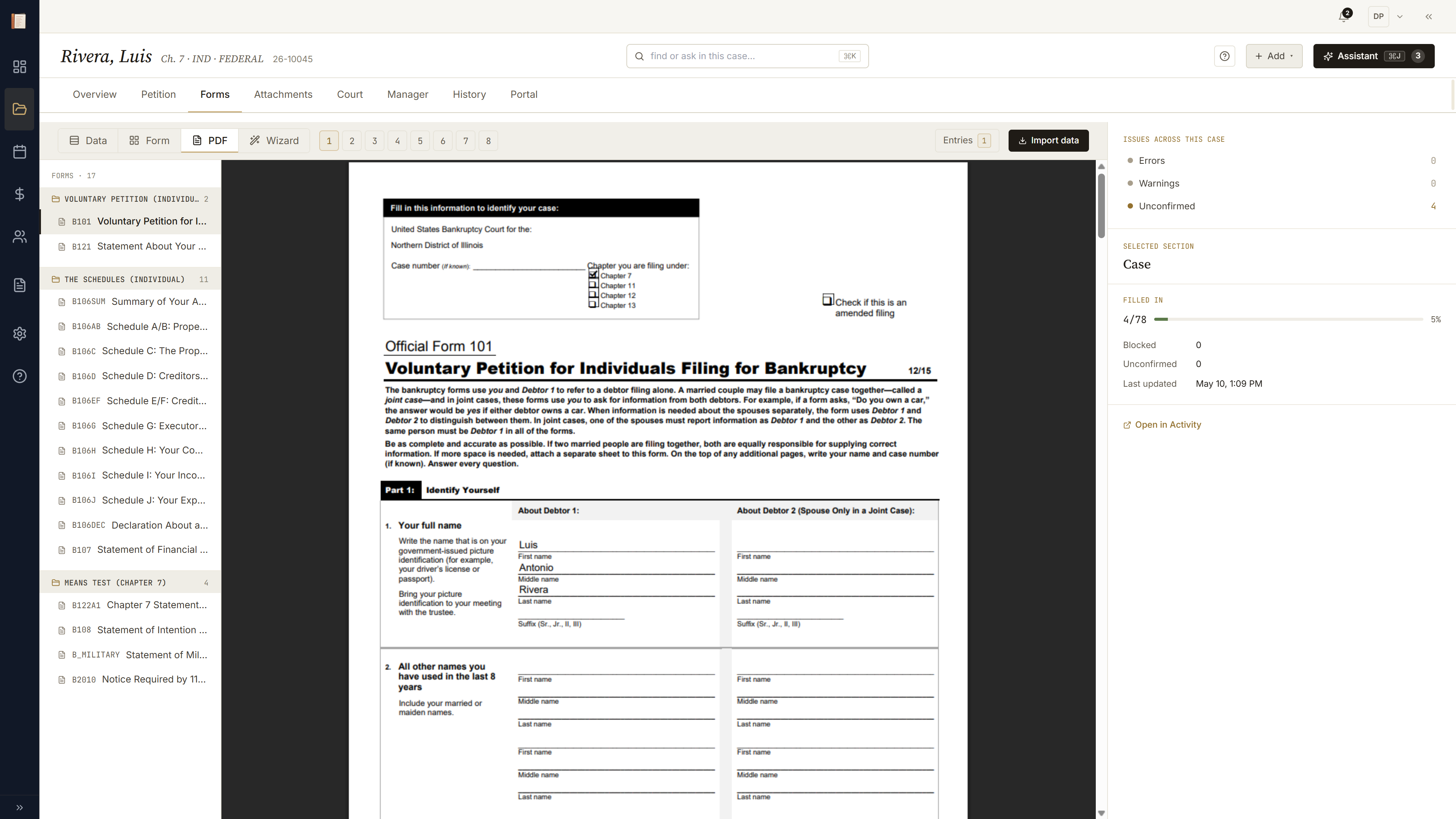
The PDF lens renders the real fillable PDF, focused-field overlay and all. Click a row in the rail and the highlight jumps to the box on the page; click a field on the page and the rail jumps to the matching schema key. Same data, third projection.
Forms — the Wizard lens
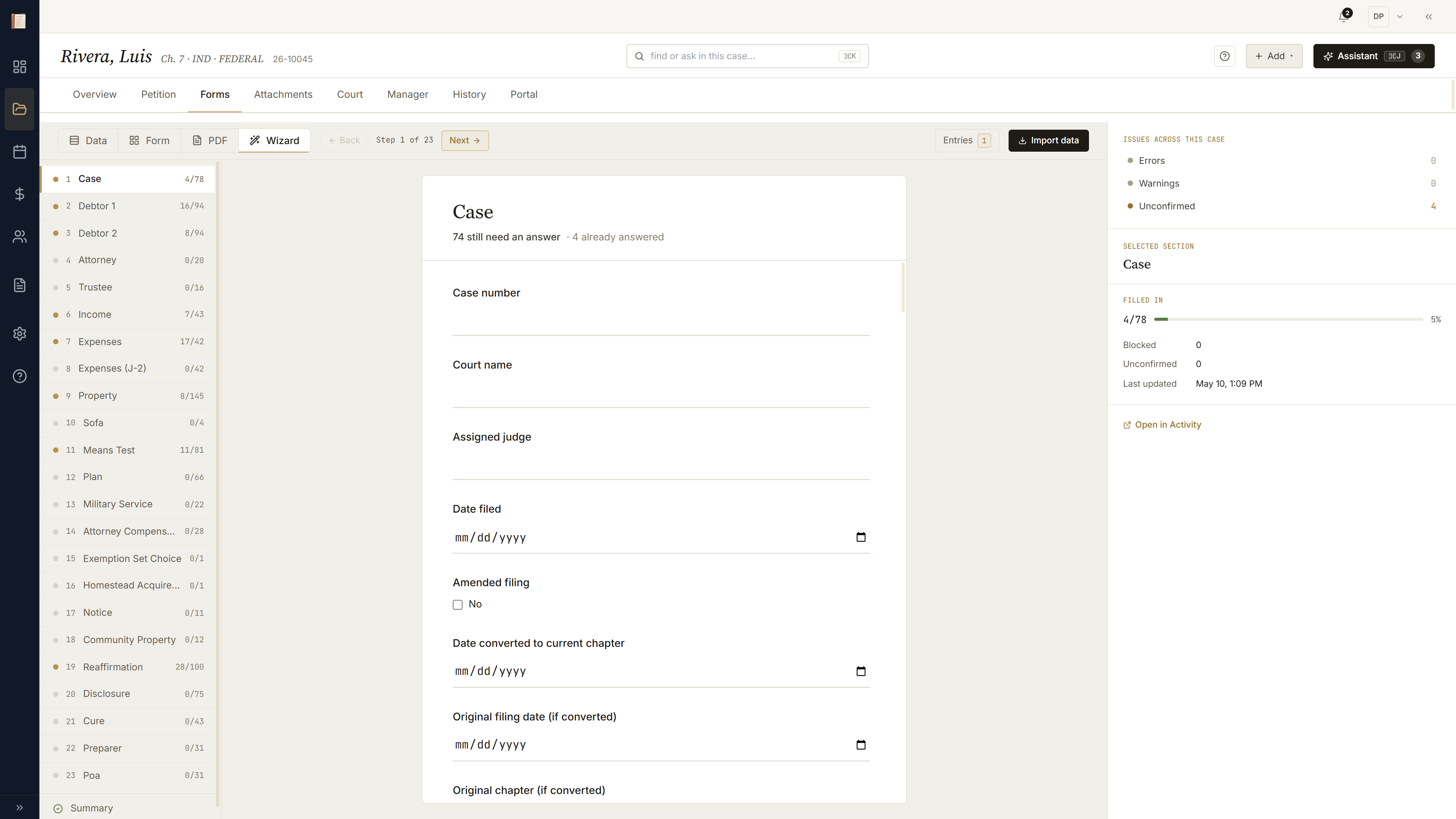
The Wizard lens is a guided walk through every topical band — same data as Data, paced one band at a time with Back/Next and a progress rail. Good for the first pass on a fresh case, or for handing off remaining bands after the client filled what they could in the portal.
Court — Filings
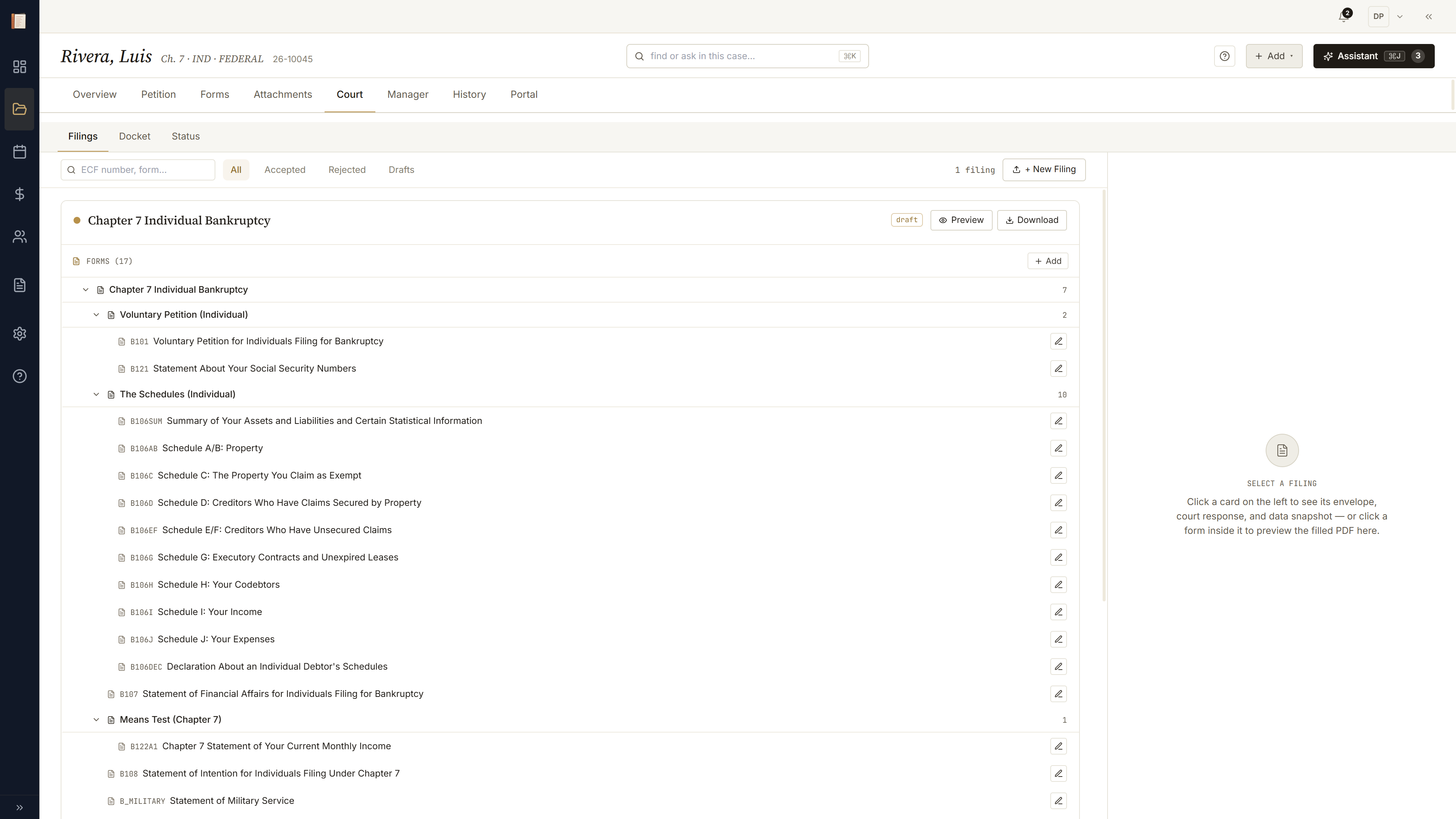
Court is the case ↔ court surface. Filings is the envelope workspace: the active draft is where new form work happens; everything else is a filed envelope, frozen against its snapshot at file-time. The pre-flight rail flags blockers before you send.
Court — Docket
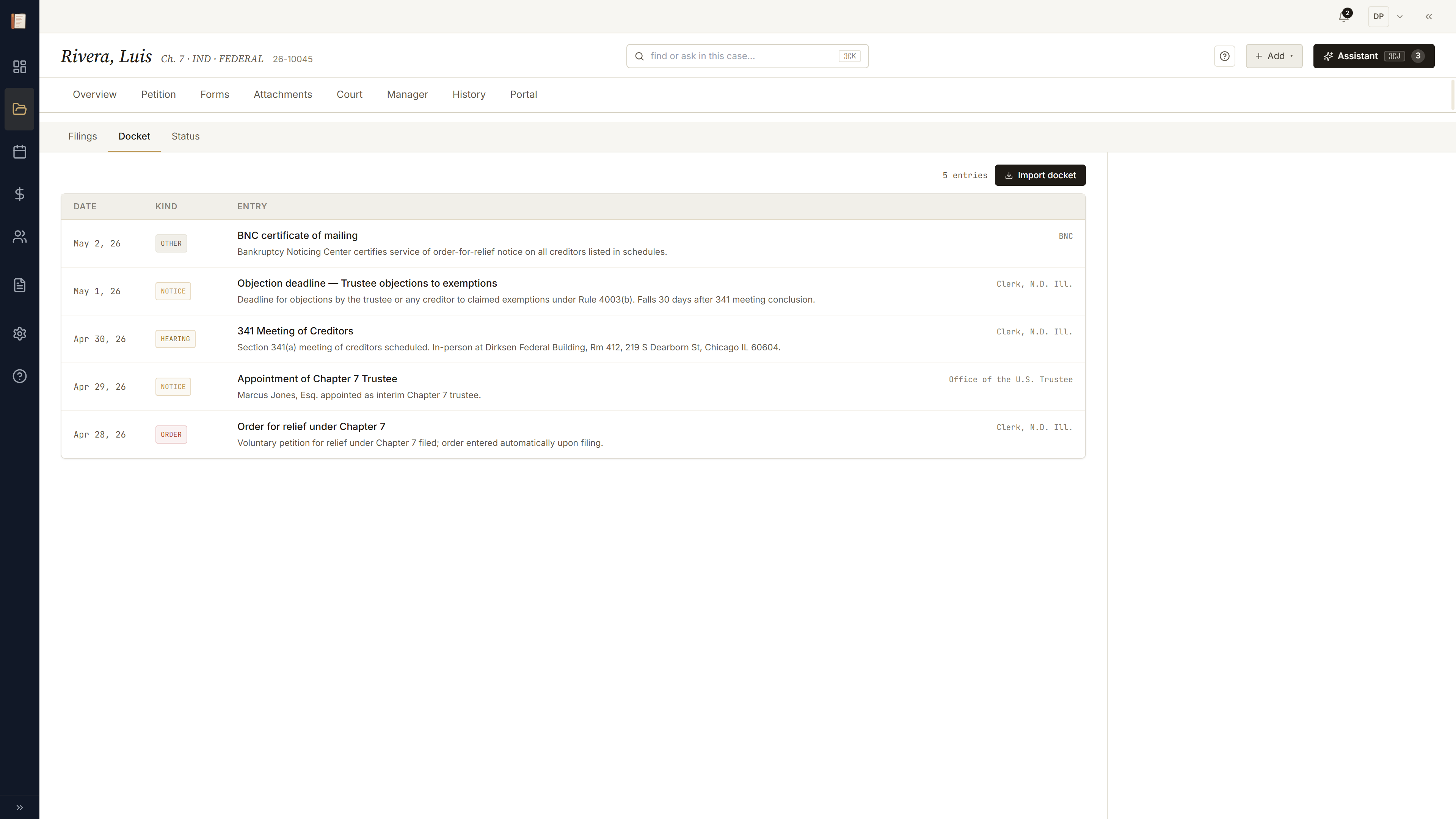
Docket is the inbound side. Paste a docket PDF and the parser turns it into typed entries — §341 meetings, response deadlines, orders. Each entry auto-creates a deadline event on the calendar and a question thread on Manager. Nothing to retype.
Attachments
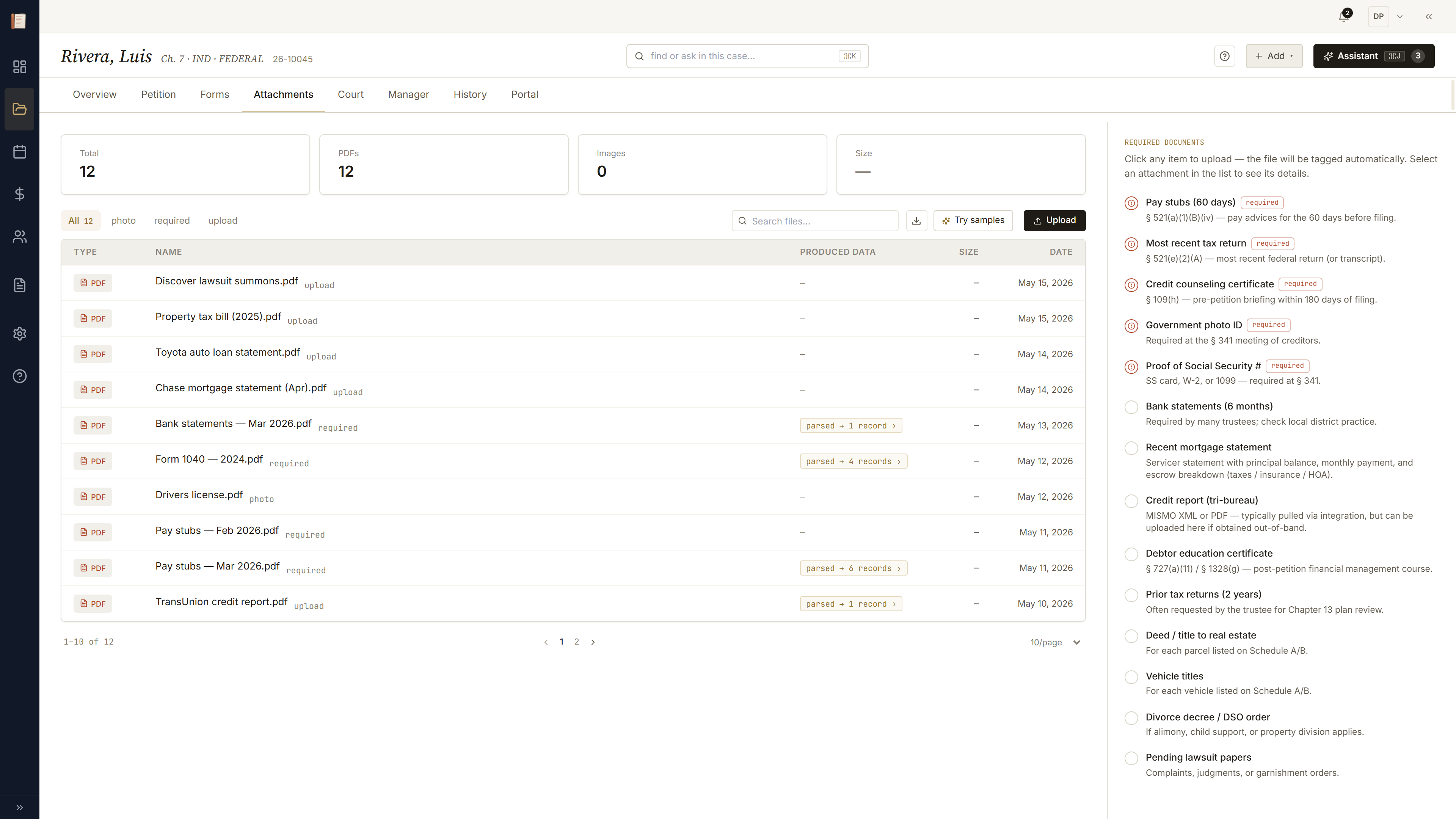
Uploaded supporting documents (ID scans, pay stubs, credit reports, certificates) plus the court-required checklist gated by filing. Drag a file onto the page from anywhere in the case and the upload + extract review opens here.
Manager — threads, calendar, billing
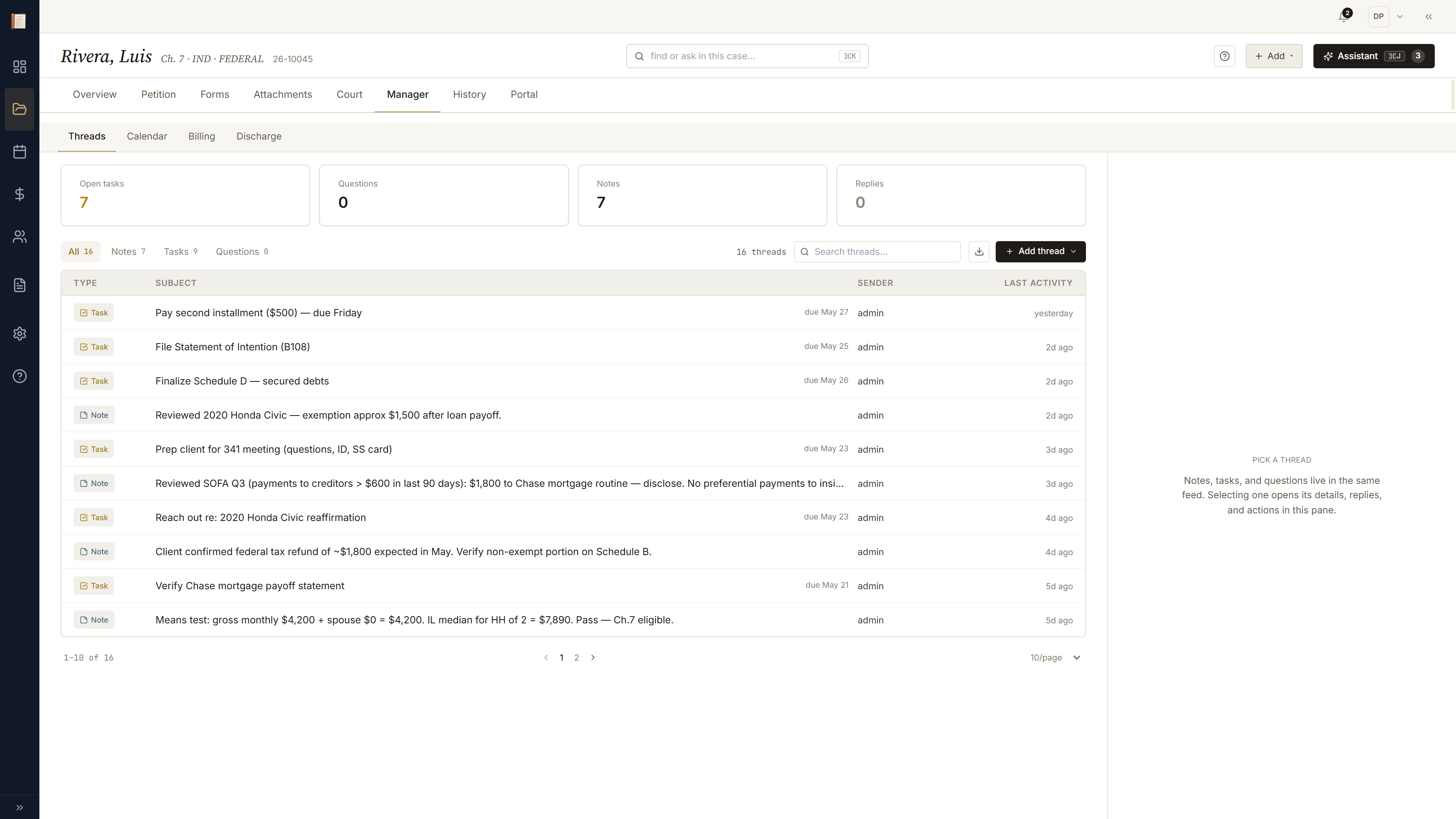
Manager unifies the lifelong case operations. Threads (notes / tasks / questions, all one inbox), Calendar (hearings + deadlines on this case), Billing (fees + payments + time). For Ch 13 cases this is also where plan-execution, claims, and discharge readiness live as the case runs.
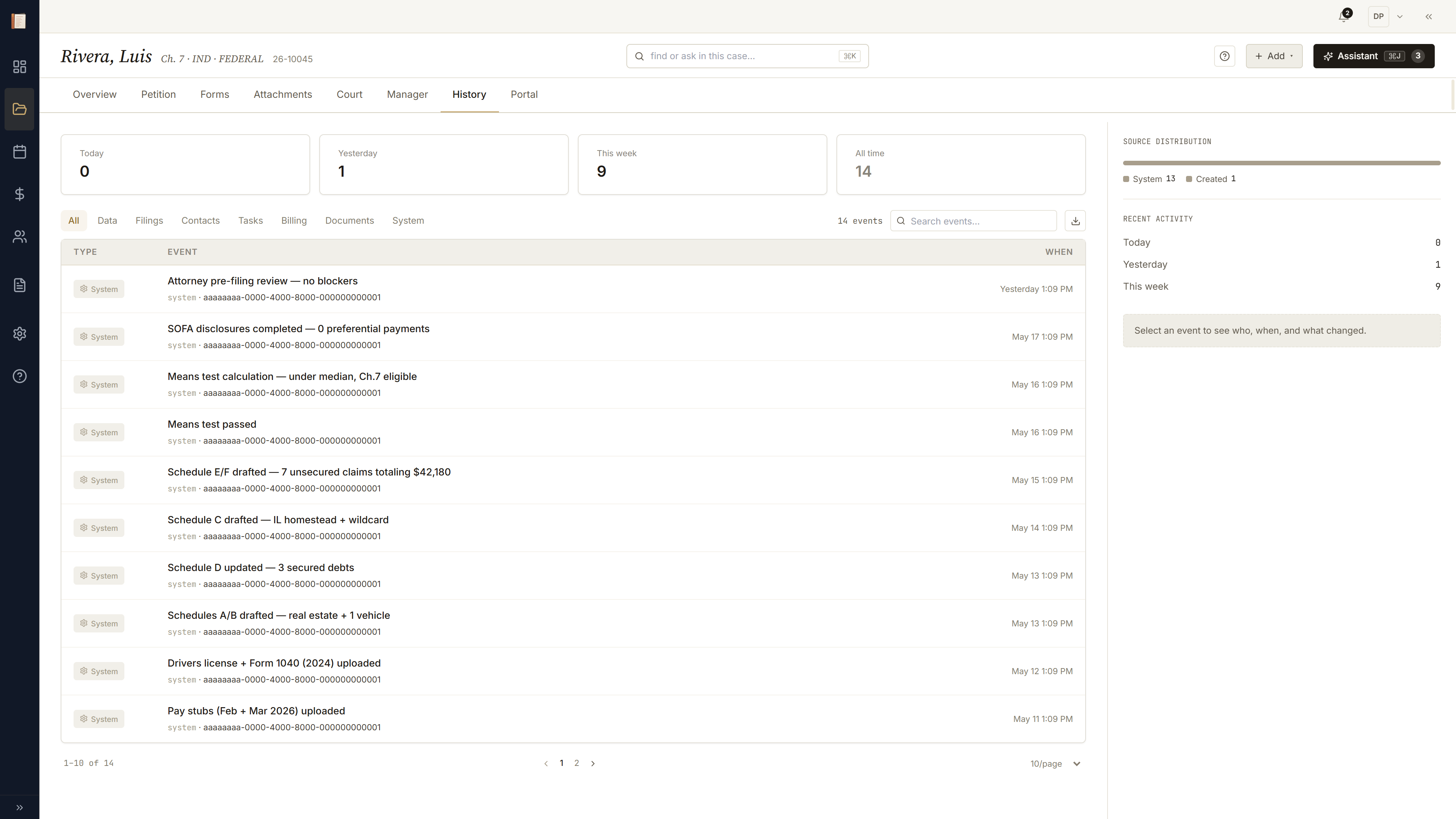
History — the auto-generated audit trail
Every data change, import, status transition, and filing event lands on History, with the invoker who triggered it. Read-only. When opposing counsel asks "when did this number change, and from what?" you point at History.
That's the map.
Two more walkthroughs go deeper on the chapter-specific flow.